LiveAstro Studio On the Mac App Store
Stack. Broadcast.
Replay.
Bring your observing night to an audience, live from your Mac.
LiveAstro combines incoming exposures into a growing image, gives you a clean broadcast view for OBS, and saves an automatic replay. Watch the sky develop, talk your audience through the session, and keep the story afterward.
Free on the Mac App Store • macOS 14 or later
App Store release 1.0.
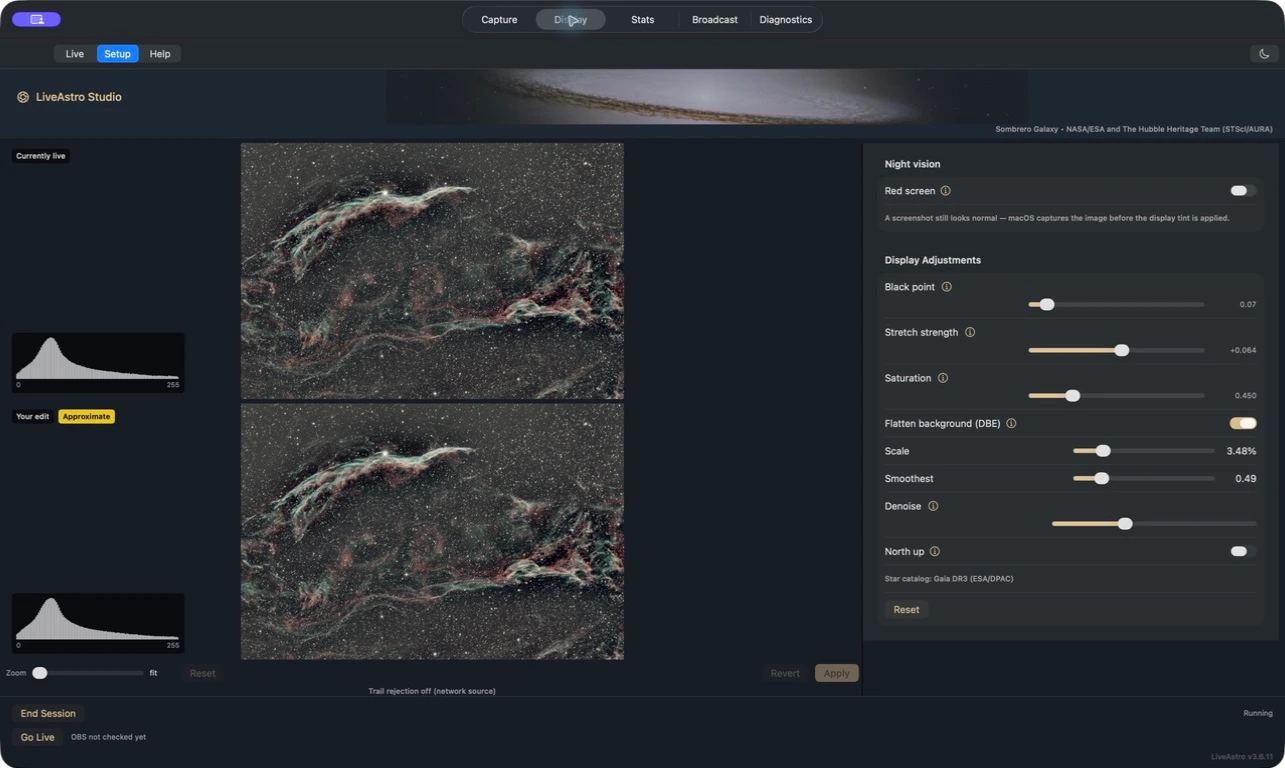
Your telescope.
Your Mac. One growing view.
Keep your capture setup. LiveAstro works with the image files it saves.
- 1
Capture as usual
Seestar, ASIAIR, or your existing capture software stays in charge of the camera and mount.
- 2
Watch the image build
Point LiveAstro at an accessible folder of FITS exposures. Its built-in stacker combines them, or it can display a stack from Siril.
- 3
Broadcast and keep the night
Bring the growing image into OBS with a dedicated broadcast window. Share the observing session live, then keep a replay and snapshots.
A Mac place in your astronomy setup.
SharpCap is Windows-only. LiveAstro is built for macOS, with a focus on file-based live stacking, broadcasting through OBS, and replays. The App Store release also supports compatible camera and observatory connections. Available controls depend on your equipment.
SharpCap’s platform requirementsBroadcasting is part of the workflow
Bring people along
for the observing night.
Show the image as it develops, explain what you’re seeing, and let an audience experience the session with you.
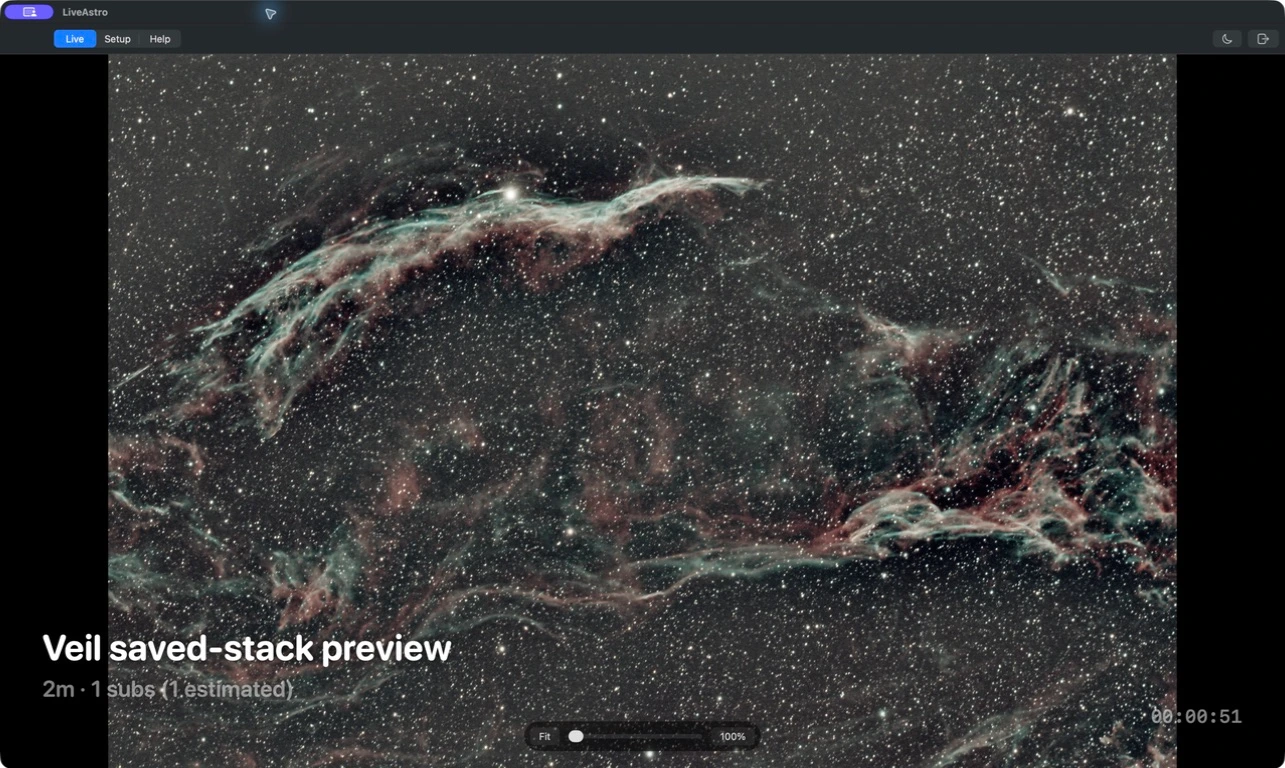
A clean view for your audience
The detached broadcast window keeps the image and session information separate from your setup and editing controls.
OBS handles the stream
Add the LiveAstro broadcast window as a Window Capture source in OBS. Use OBS to assemble your show and send it to your streaming destination.
Go live from LiveAstro
With OBS WebSocket automation configured, Go Live starts the stream and End Broadcast stops it while your astronomy session continues. You can also start streaming directly in OBS.
You choose when the audience joins: Start Session begins observing; Go Live begins broadcasting.
Read the OBS setup guideExplore LiveAstro
From image folder
to a night worth keeping.
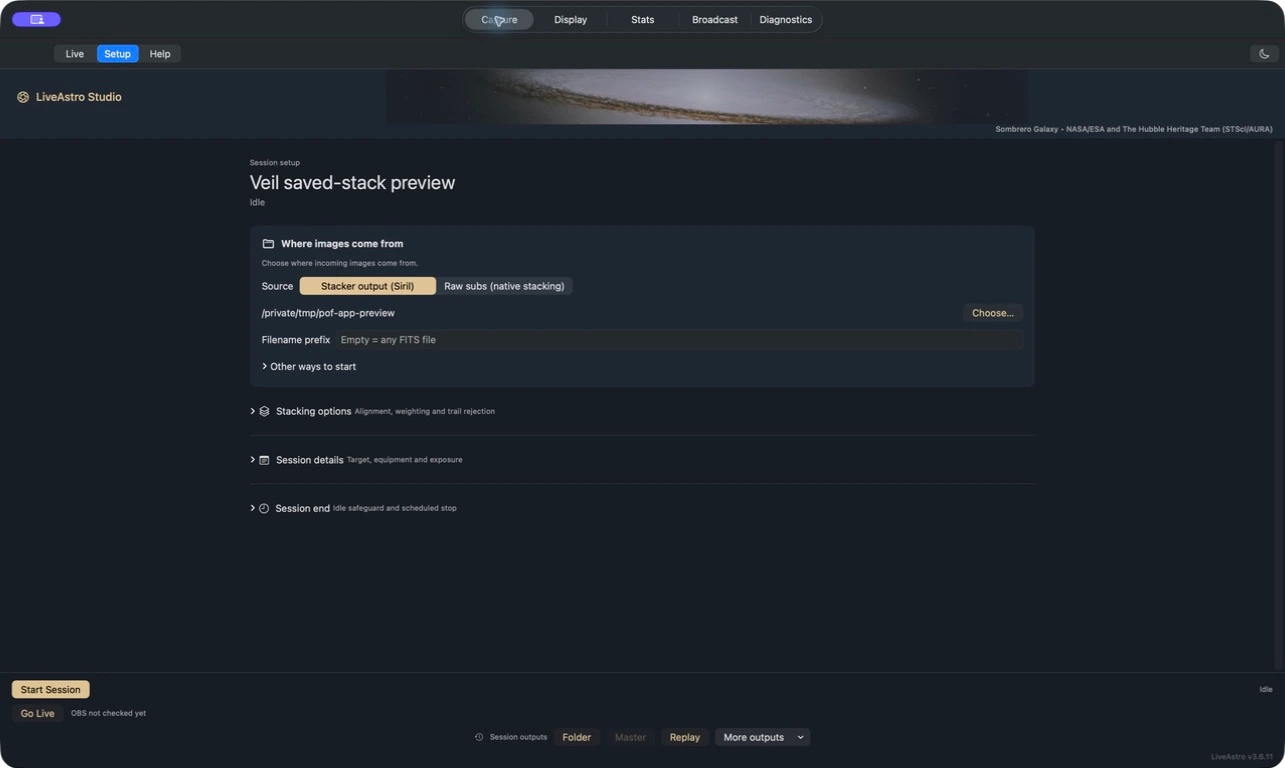
Take a three-step tour of the real interface, then play a replay from an observing session.
Start with the files you already capture.
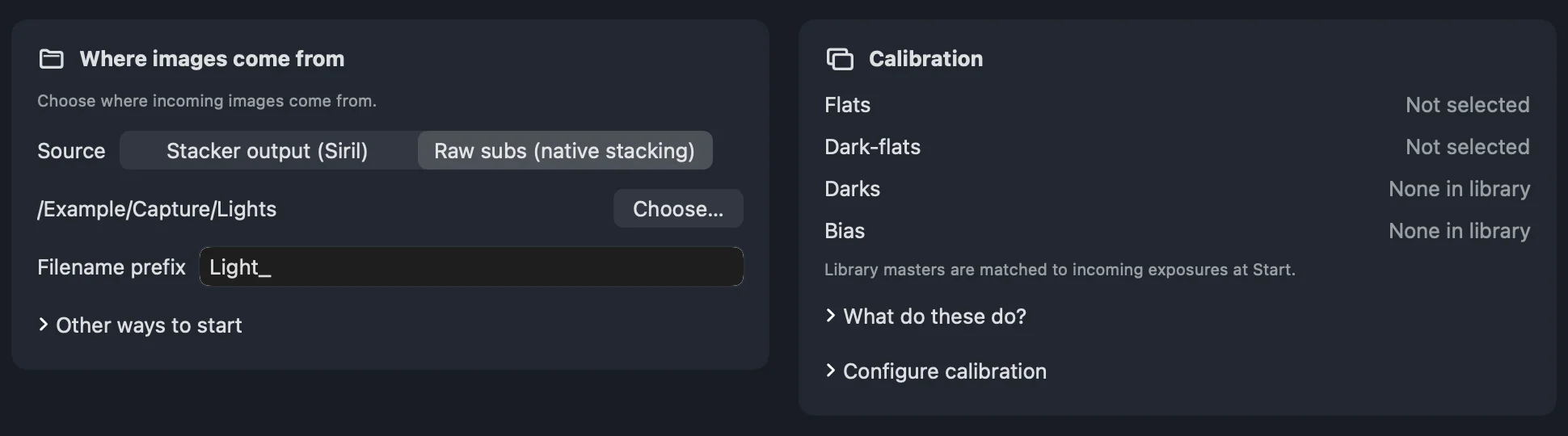
Choose a folder your Mac can access. Use raw FITS exposures for native stacking, or choose an existing stack from software such as Siril. Your camera and mount stay under the control of your capture setup.
Watch earlier live broadcasts and demos
These recordings show earlier versions. Their interface and features may differ from the current release.
A few things
before your first night.
No clear sky required. Try the built-in demo, then a previous shoot or your live capture folder.
Will it work with my setup?
You need a Mac running macOS 14 or later and image files the Mac can access.
- Seestar live folders
- ASIAIR network shares
- NINA / generic FITS folder accessible to the Mac
- Siril live_stack output
- Previous-shoot FITS folders
- No-sky demo mode
NINA runs on Windows; LiveAstro reads its saved files on your Mac. For live broadcasts, connect OBS to LiveAstro’s dedicated broadcast window. Stacking and replay also work without OBS.
What does a session save?
An automatic video replay, image snapshots, a readable session summary, and a spreadsheet-friendly record of saved snapshots. Native stacking also produces a FITS master for further processing; when using an external stacker, that program owns the master.
Your original capture files stay unchanged.
How do I get started?
- Install LiveAstroStudio from the Mac App Store.
- Open the app and choose Try Demo.
- End the session and open its replay. Then try your own FITS folder.
Does starting a session put me live?
No. Starting a session and starting an OBS broadcast are separate actions. Use LiveAstro privately, or deliberately choose Go Live when you’re ready to broadcast.
What’s coming next?
I’m exploring Mosaic Night Mode for wider views assembled from multiple panels. Panel-aware sessions, previews, and stitching are future goals, not features promised in this release.
Help shape LiveAstro
Try a session.
Tell me how it went.
Start with Try Demo, save a replay, then try a folder of your own FITS exposures. I’d like to hear what worked, what was confusing, and what got in your way.
Report a bug
Check existing reports, then open a GitHub issue. Include your Mac model, macOS and LiveAstro versions, steps to reproduce, and what you expected to happen. A screenshot helps.
Report a bug on GitHubA GitHub account is needed to submit an issue.
Send feedback
No GitHub account? Leave feedback or get in touch through my photography Facebook page. Tell me about your setup and the session you tried.
Send feedback via FacebookFacebook sign-in may be required.
Explore the project
Browse the MIT-licensed source, follow development, and use the first-session checklist to guide your first session.
Your next session,
on your Mac.
Start with the demo. Bring your own sky when you’re ready.
Free • macOS 14 or later
Available now on the Mac App Store.